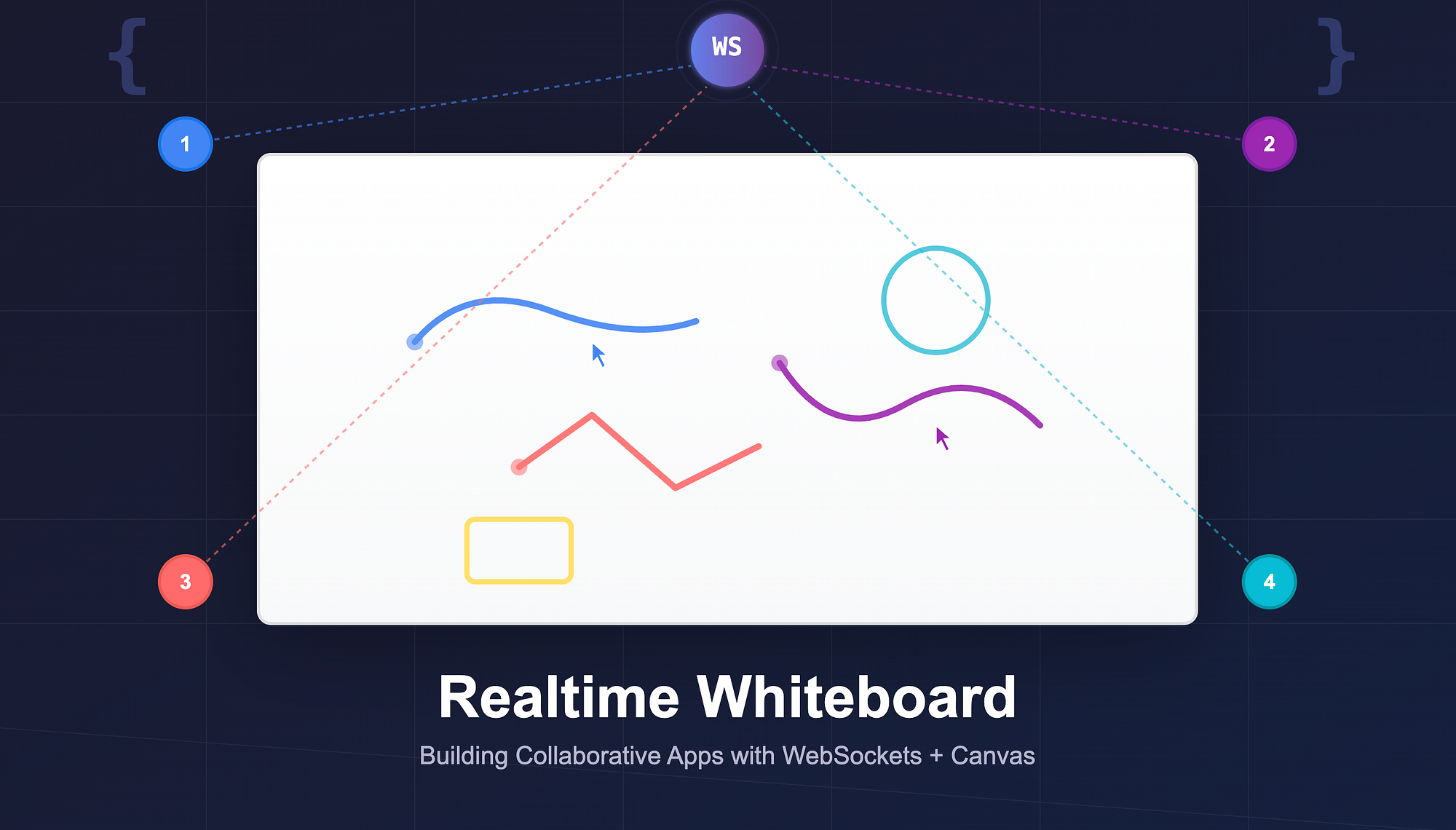
If you've ever used Miro, Figma, or Google Jamboard, you know the magic of seeing someone else's cursor move in real time. It feels instant, seamless, and alive.
Now imagine your interviewer says:
"Let's build a simple collaborative whiteboard where users can draw and everyone sees updates live."
Welcome to one of the most exciting (and deceptively challenging) machine coding problems: Building a Realtime Whiteboard.
Problem Statement
You are asked to build a basic whiteboard that:
- Lets users draw freely on a canvas.
- Syncs those drawings across multiple clients in real time.
- Works even when multiple users are drawing at the same time.
You usually have 90 to 120 minutes. No third-party libraries like Miro SDKs. Just HTML, Canvas, WebSockets, and your frontend instincts.
Let's go step by step and approach it like we would in a real-world project.
Step 1: Setting Up the Project
Start small. Do not overcomplicate tooling. The interviewer is evaluating your ability to execute with clarity, not how much boilerplate you can spin up.
You can start with:
mkdir realtime-whiteboard
cd realtime-whiteboard
npm init -y
npm install express ws
Create a minimal server that serves a static HTML file and handles WebSocket connections.
// server.js
import express from "express";
import { WebSocketServer } from "ws";

const app = express();
app.use(express.static("public"));

const server = app.listen(3000, () =>
  console.log("Server running on port 3000")
);

const wss = new WebSocketServer({ server });

wss.on("connection", (socket) => {
  socket.on("message", (data) => {
    wss.clients.forEach((client) => {
      if (client !== socket && client.readyState === 1) {
        client.send(data);
      }
    });
  });
});
Here we are:
- Serving static files from a public/ folder.
- Using ws to enable bidirectional communication.
- Broadcasting messages from one client to all others.
Step 2: Building the Drawing Board (Canvas)
Inside public/index.html, create a simple canvas:
<canvas id="board" width="800" height="600" style="border:1px solid #ccc;"></canvas>
<script src="client.js"></script>
Then in public/client.js:
const canvas = document.getElementById("board");
const ctx = canvas.getContext("2d");

let drawing = false;
let last = null;

canvas.addEventListener("mousedown", (e) => {
  drawing = true;
  last = { x: e.offsetX, y: e.offsetY };
});

canvas.addEventListener("mousemove", (e) => {
  if (!drawing) return;
  const current = { x: e.offsetX, y: e.offsetY };
  drawLine(last, current, "#000", 2);
  sendStroke(last, current);
  last = current;
});

canvas.addEventListener("mouseup", () => (drawing = false));

function drawLine(from, to, color, width) {
  ctx.strokeStyle = color;
  ctx.lineWidth = width;
  ctx.beginPath();
  ctx.moveTo(from.x, from.y);
  ctx.lineTo(to.x, to.y);
  ctx.stroke();
}
At this point, you can draw locally on your canvas. The next step is to make it collaborative.
Step 3: Syncing Strokes in Real Time (WebSockets)
Connect to the WebSocket server and send each stroke you draw.
const socket = new WebSocket("ws://localhost:3000");

function sendStroke(from, to) {
  const data = { from, to, color: "#000", width: 2 };
  socket.send(JSON.stringify(data));
}

socket.onmessage = (message) => {
  const { from, to, color, width } = JSON.parse(message.data);
  drawLine(from, to, color, width);
};
That's all you need for your first real-time whiteboard. Open the app in two browser tabs, draw in one, and watch it appear in the other.
It feels almost magical.
Step 4: Handling Multiple Users
Now things start getting interesting. When multiple users draw, you will notice:
- Lines from different users look the same.
- Drawings can clash visually.
- The app may lag if several users draw quickly.
Let's address these issues.
1. Assign each user a unique color
const userColor =
  "#" + Math.floor(Math.random() * 16777215).toString(16);
Include this color in every stroke message so each user has a distinct visual identity.
2. Throttle stroke updates
Instead of sending a WebSocket message on every mouse movement, throttle it for better performance.
let lastSent = 0;
function sendStroke(from, to) {
  const now = Date.now();
  if (now - lastSent < 16) return; // ~60 frames per second
  lastSent = now;
  socket.send(
    JSON.stringify({ from, to, color: userColor, width: 2 })
  );
}
This reduces the number of messages and makes the experience smoother.
Step 5: Performance Considerations
Here are a few optimizations that show senior-level thought process:
- Batch updates: Instead of sending each pixel movement, collect and send points every 100ms.
- Use requestAnimationFrame: For smoother rendering instead of drawing directly in mousemove.
- Handle heartbeats: Maintain WebSocket connections and handle reconnections.
- Persist strokes: Store history on the server so new users can see existing drawings.
Here is a simple batching approach:
let buffer = [];
setInterval(() => {
  if (buffer.length) {
    socket.send(JSON.stringify({ batch: buffer }));
    buffer = [];
  }
}, 100);

function sendStroke(from, to) {
  buffer.push({ from, to, color: userColor, width: 2 });
}
This drastically reduces network traffic and improves scalability.
What Interviewers Look For
When interviewers give this problem, they are not testing if you can draw lines. They want to see if you can build a collaborative, scalable system under time pressure.
Specifically, they look for:
- Structured approach: Did you start small and build iteratively?
- Code organization: Did you separate rendering and networking logic?
- Scalability awareness: Did you think about throttling, batching, and latency?
- Robustness: Can it handle multiple users drawing simultaneously?
- Communication: Did you clearly explain your reasoning while coding?
Wrapping Up
- WebSockets enable real-time bidirectional communication, perfect for collaborative tools.
- The Canvas API can handle surprisingly complex visual tasks when combined with proper event management.
- Throttling, batching, and coordinate normalization are essential for scalability.
- Always start with the core loop: draw locally → sync → replay remotely.
- Most real-world tools like Miro or Figma began with the same foundation, then added layers of polish, CRDTs, and distributed sync.
Every complex collaborative app starts from a simple version like this one. One canvas, one WebSocket, and one idea: real-time collaboration.